
Secure Tezos Hardware Signer
Originally engineered for Baktz, Russignol is the fastest Raspberry Pi Zero 2 hardware signer — built for uncompromising security and reliability.
Features
Secure Storage
Private keys are encrypted and stored securely on the device with PIN protection.
Fast BLS Signatures
Optimized for performance: the Pi Zero 2 generates BLS signatures in under 6ms, ready for future Tezos protocols.
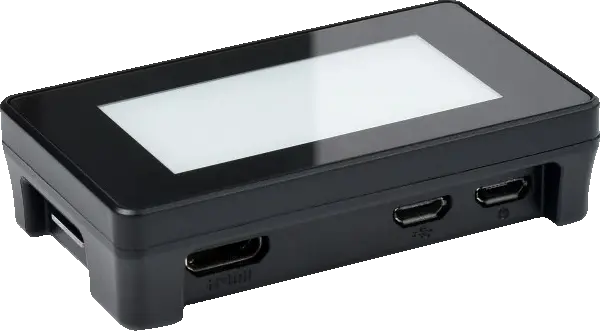
E-Paper Touch Display
Intuitive touch controls for PIN entry. View signing activity at a glance.
Automated Setup
The companion CLI utility makes configuring your baker host effortless and verifiable.
Why Russignol?
- Physical Separation: Your private keys never leave the device. Key generation and PIN setup happen exclusively on the touchscreen — even a compromised host cannot access or extract your keys.
- Hardened by Default: Sleep soundly with a purpose-built Linux distribution. No WiFi, no Bluetooth, no SSH, no logins — attack vectors are eliminated, not just disabled.
- Memory-Safe Implementation: Built in Rust for guaranteed memory safety. Cryptographic operations use the audited and formally verified blst library — no buffer overflows, no exploits.
- Never Miss a Block: Sign blocks in under 6ms with no garbage collection pauses — at least 2x faster than comparable signers.
- Tiny Attack Surface: Just 7.4MB compressed — fewer binaries means fewer vulnerabilities. Audit the entire system, not thousands of unknown packages.
- Instant Recovery: Back online in 3.8 seconds after a power cycle. Minimize missed blocks during restarts or unexpected reboots.
- Built to Last: No more prematurely worn-out SD cards — no risky key migrations, no downtime, no unhappy delegators. F2FS expands to use your entire card for maximum wear leveling. Your storage will outlive the hardware.
Get Started
Download Host Utility
Download the setup utility for your host architecture from GitHub Releases.
AMD64
curl -L -o russignol https://github.com/RichAyotte/russignol/releases/latest/download/russignol-amd64 && chmod +x russignolAArch64
curl -L -o russignol https://github.com/RichAyotte/russignol/releases/latest/download/russignol-aarch64 && chmod +x russignolFlash the Image
Download and flash the Russignol image to your SD card. This can run on any Linux machine with an SD card reader — it doesn't need to be your baker.
./russignol image download-and-flashInitialize Device
Insert the SD card into your Pi Zero 2 and connect it via USB. On the touchscreen, create your PIN and generate your signing keys.
Configure Baker
On your baker host, run the setup wizard to configure it to use the keys on your Russignol device.
./russignol setup